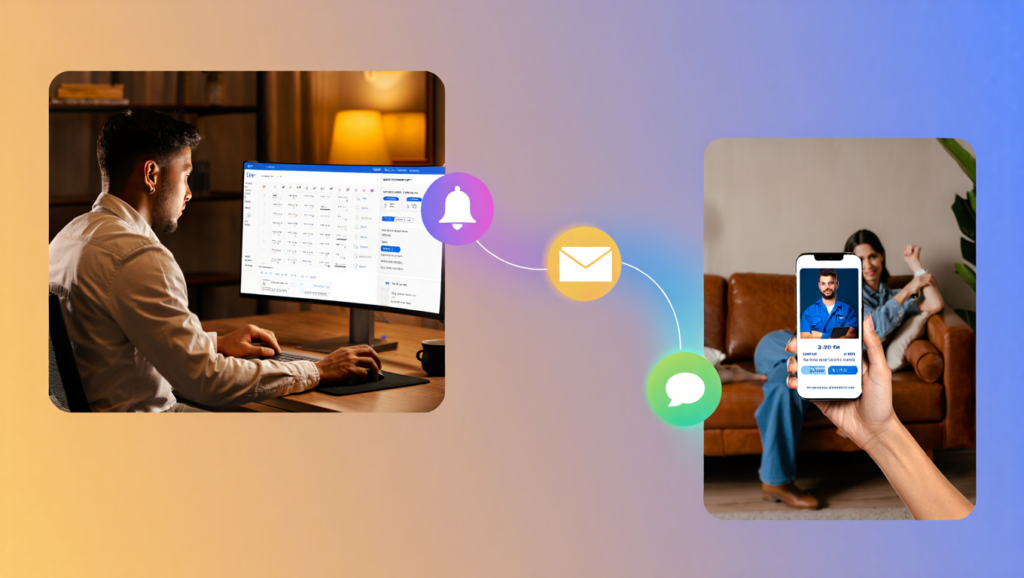
Every field service business has felt it — that gut-punch moment when a technician pulls up to a job and no one answers the door. The customer forgot. Maybe they mixed up the date. Maybe they never saw your confirmation email buried under 200 other messages. Whatever the reason, that no-show costs you a slot in your schedule, fuel, and the wages you just paid your tech to sit in a driveway. Industry research suggests no-show rates for service appointments can run as high as 10–15% without reminder systems in place — meaning one or two wasted runs a week for a typical small operation.
The fix isn’t hiring someone to call every customer the night before. That’s expensive, inconsistent, and not scalable once you grow past a handful of jobs per day. The real solution is automating those reminders completely — so they go out on time, every time, without anyone on your team lifting a finger.
This guide walks you through exactly how to send automated appointment reminders for service calls, which tools do it best, and how to set up a reminder workflow that genuinely reduces no-shows for HVAC, plumbing, electrical, cleaning, pest control, and appliance repair businesses.
| ⚡ QUICK ANSWER To send automated appointment reminders for service calls, you need field service management software with built-in automation — such as Jobber, ServiceTitan, or Housecall Pro. These platforms let you schedule SMS and email reminders to fire automatically at set intervals (e.g., 48 hours before, 2 hours before) without any manual action from your dispatcher. Most can be set up in under an hour and immediately reduce missed appointments. |
What You’ll Need Before You Start
Before you dive into setting up automated reminders, a few things need to be in place. Skipping this groundwork is the most common reason reminder systems fail silently — messages go out, but they don’t land.
A field service management (FSM) platform. Generic calendar apps and spreadsheets don’t have the automation engine to trigger reminders based on job status. You need purpose-built software. The three tools covered in this guide — Jobber, ServiceTitan, and Housecall Pro — all have robust reminder automation built in.
Clean, up-to-date customer contact data. Automated reminders are only as good as the phone numbers and email addresses in your system. If your records are patchy or outdated, start by running a quick audit of your last 90 days of jobs and filling in any missing mobile numbers. SMS reminders especially depend on having a valid cell number, not a landline.
Customer consent for SMS. In the U.S., the TCPA (Telephone Consumer Protection Act) requires businesses to have prior express consent before sending marketing texts. For transactional messages — like appointment confirmations and reminders — the rules are somewhat more lenient, but it’s best practice to collect consent at booking. Most FSM platforms have this built into their customer intake forms.
A clear reminder schedule in mind. Before touching any settings, decide: How many reminders will you send? At what intervals? A common, proven sequence for field service is: confirmation at booking + reminder 48 hours before + reminder 2 hours before. Having this mapped out before setup keeps you from second-guessing every dropdown.
Step-by-Step: Setting Up Automated Appointment Reminders
Now that your foundation is in place, let’s walk through the actual setup. We’ll cover the process conceptually and then dive into the specifics for each platform in the tool reviews below.
Step 1: Choose Your Reminder Channels (SMS, Email, or Both)
The first decision is which channels your reminders will use. SMS and email serve different purposes, and the best field service businesses use both in tandem.
SMS (text message) reminders have an average open rate north of 95% and are read within three minutes of delivery. For day-of reminders, SMS is non-negotiable — it’s the channel that actually interrupts what the customer is doing and makes them check their calendar. Most FSM platforms support two-way SMS, meaning customers can reply “C” to confirm or “R” to reschedule, which feeds directly back into your dispatch board.
Email reminders are better suited for confirmation messages sent at booking and reminders sent 48–72 hours out. They allow you to include more detail — the technician’s name, a photo for trust-building, a list of what to have ready (e.g., “please ensure access to your water heater”), and a link to reschedule if needed.
Step 2: Map Your Reminder Sequence and Timing
Open a blank document or whiteboard and sketch out exactly when each reminder fires and what it says. This step takes 20 minutes and saves hours of second-guessing later.
A field-tested sequence that works across HVAC, plumbing, and appliance repair:
- At booking (immediate): Email confirmation with job date, time window, technician info, and a reschedule link
- 48 hours before: SMS + Email reminder with date, time window, and a confirm/reschedule option
- 2 hours before: SMS reminder with ETA or arrival window, and the technician’s first name
Keep the message content short and action-oriented. Your 48-hour SMS should be under 160 characters if possible to avoid splitting into two messages on older phones.
Step 3: Configure Automation in Your FSM Platform
This is where the specific platform you choose matters. The core workflow is the same across tools:
- Navigate to the notifications or automation settings in your platform
- Create a new automation rule triggered by “job scheduled” or “appointment created”
- Set the delay for each reminder (e.g., “send 48 hours before job start time”)
- Select the channel (SMS, email, or both)
- Write or customize the message template using dynamic tags (e.g., {customer_first_name}, {job_date})
- Save and activate the automation
Always send yourself a test reminder before going live — check that dynamic fields populate correctly, your business name appears, and any reply-to addresses are correct.
How to Schedule Field Technicians Without Spreadsheets in 2026
Step 4: Set Up Two-Way Confirmation Tracking
Sending reminders is only half the equation. You also need to know who confirmed and who didn’t — so your dispatcher can follow up with unconfirmed jobs before the day starts.
All three platforms in this guide support two-way SMS, but the way they surface unconfirmed jobs varies. In Jobber, unconfirmed appointments show a distinct status indicator on the schedule view. ServiceTitan has a dedicated notification queue for unresponded reminders. Housecall Pro flags unconfirmed jobs in its dispatch board view.
Train your dispatcher to check unconfirmed jobs each morning for the following day. A quick manual call to any unconfirmed customer catches last-minute cancellations early enough to fill the slot.
Step 5: Track No-Show Rates Before and After
Set a baseline before you activate automated reminders. Pull your job completion data for the last 60–90 days and calculate your no-show rate: divide the number of missed appointments by total scheduled jobs.
After running automated reminders for 60 days, pull the same data and compare. Most field service businesses see no-show rates drop by 40–70% after implementing a proper reminder sequence.
How to Manage Recurring Maintenance Contracts in Software (2026)
Common Mistakes to Avoid
Sending Reminders Too Early (or Only Once)
A reminder sent five days before a job does almost nothing — customers will forget again by the time the appointment rolls around. The sweet spot is 48 hours and 2 hours. Sending only one reminder leaves a gap. Pair a medium-range and a same-day reminder for the best results. If you’re only going to set up one reminder, make it the 2-hour text — it’s the highest-impact single touchpoint.
Using a Generic Message Without Personalization
“Your appointment is confirmed” is better than nothing, but it’s also easy to ignore. Messages that include the customer’s first name, your company name, the technician’s name, and a specific arrival window have significantly higher engagement. Every FSM platform covered in this guide supports dynamic field tags — use them.
Not Testing the Automation Before Going Live
Create a test job with your own phone number and email as the customer, run it through your reminder workflow, and check: Did the SMS arrive? Did the dynamic fields populate? Does the email render correctly on mobile? Fix any issues before real customers start receiving messages.
Ignoring Opt-Out Requests
Your FSM platform should automatically handle opt-outs for SMS (customers reply STOP and are removed from future messages). Make sure this feature is active. Ignoring opt-outs can expose your business to TCPA complaints and fines.
Failing to Update Contact Records After Calls
If a customer calls to reschedule and your dispatcher takes the new date over the phone but doesn’t update the job record in the FSM, the original reminder will still fire with wrong information. Make updating the job record a required part of your reschedule process.
Tools That Make Automated Reminders Easy
Now let’s look at the three purpose-built platforms that handle automated appointment reminders for field service businesses in 2026.
Jobber — Best for Small Field Service Teams (1–15 Techs)
Jobber has become the go-to platform for small field service businesses that want professional-grade automation without enterprise-level complexity. It’s used by over 200,000 service professionals across HVAC, plumbing, landscaping, cleaning, and more.
Key Features
Jobber’s client communication hub handles automated reminders via email and SMS at the times you specify. You can configure reminders to fire at booking, a set number of days/hours before a job, and on job completion.
The platform uses dynamic tags for personalization and supports two-way client communication through a unified inbox. Clients can confirm, request a reschedule, or ask questions, and all replies land in one place.
Jobber also includes a client hub — a self-service portal where clients can approve quotes, view upcoming jobs, and pay invoices. The scheduling and dispatch view shows job confirmation status in real time, making it easy to spot unconfirmed appointments.
Pricing
- Core: ~$49/month (1 user) — basic scheduling and invoicing, limited automation
- Connect: ~$129/month (up to 5 users) — full automated reminders, two-way SMS, client hub
- Grow: ~$249/month (up to 15 users) — online booking, automated follow-ups, review requests
Pricing as of 2026 — verify on provider’s website. Annual billing saves ~20%.
Best For
Jobber is the strongest fit for owner-operators and small crews who want to set up automated reminders quickly without a long onboarding process. If you’re running 5–30 jobs per day, Jobber’s clean interface means you can configure the full reminder workflow in an afternoon.
Start your free 14-day trial of Jobber — no credit card required.
Limitations
Jobber’s reporting is functional but not deep. If you need granular data on reminder open rates or SMS delivery receipts broken out by campaign, you’ll hit its ceiling. It also doesn’t have a native route optimization engine.
ServiceTitan — Best for Mid-Sized and Growing Operations
ServiceTitan is the enterprise-grade player in field service management, built specifically for trades businesses in HVAC, plumbing, electrical, and related industries. It powers some of the largest field service companies in North America.
Key Features
ServiceTitan’s marketing automation module handles reminder workflows with sophisticated multi-step communication sequences. You can configure confirmation at booking, SMS 48 hours before, email 24 hours before, and SMS 2 hours before — each message customizable by job type or customer segment.
The platform’s two-way SMS functionality is particularly strong. ServiceTitan also includes an AI-powered dispatch feature that can predict no-show likelihood based on historical customer data, letting you prioritize manual follow-up for high-risk appointments.
ServiceTitan connects with Google Local Services Ads, QuickBooks, and a growing app marketplace. Its call recording and CSR coaching tools make it a true operations platform.
Pricing
ServiceTitan does not publish pricing publicly — you need to request a custom quote. Based on industry-reported figures as of 2026, expect a starting point in the range of $398–$598/month for smaller operations, with implementation and training costs on top.
Request a ServiceTitan demo to see current pricing and plans for your team size.
Best For
ServiceTitan is the right call for established field service businesses generating $500K+ annually that are scaling aggressively and need reminder automation as one piece of a comprehensive operations stack.
Limitations
ServiceTitan has a steep learning curve. Implementation typically takes 30–90 days. For solo contractors or businesses under 5 techs, the cost and complexity are hard to justify.
Housecall Pro — Best for Ease of Use and Fast Setup
Housecall Pro sits between Jobber and ServiceTitan on the complexity and pricing spectrum, and consistently wins praise for having the most intuitive interface in the field service space. It’s particularly popular among HVAC, cleaning, and appliance repair businesses.
Key Features
Housecall Pro’s automated reminder system is one of the easiest to configure in the market. From the notifications settings panel, you can toggle on SMS and email reminders at various time intervals — no code, no complex workflow builder.
Standout features include postcard mailing automation, a consumer-facing booking widget, and review request automation. On the reminder side, Housecall Pro supports two-way SMS, real-time ETA notifications (customers can see their tech on a map, Uber-style), and automatic follow-up messages after job completion.
When a tech marks “on my way,” the customer gets an automatic “your tech is en route” text — a feature that dramatically reduces inbound “where’s my technician?” calls.
Pricing
- Basic: ~$79/month (1 user) — includes automated reminders, invoicing, and payments
- Essentials: ~$189/month (up to 5 users) — adds reporting, advanced notifications, integrations
- MAX: Custom pricing — enterprise features, dedicated success manager
Pricing as of 2026 — verify on provider’s website.
Housecall Pro] — Housecall Pro offers a free trial — get started and have reminders live today.
Best For
Housecall Pro is the best choice for field service businesses that prioritize customer experience and want their reminder workflow live within hours of signing up. The Basic plan is one of the most affordable ways to get professional automated reminders running today.
Limitations
Housecall Pro’s reporting capabilities are limited compared to ServiceTitan. Custom workflow automation requires higher-tier plans. Some users report that the QuickBooks sync can be finicky for complex job costing scenarios.
Side-by-Side Comparison Table
| Feature | Jobber | ServiceTitan | Housecall Pro |
|---|---|---|---|
| Starting Price | ~$49/mo | ~$398/mo | ~$79/mo |
| SMS Reminders | ✅ Connect+ | ✅ | ✅ |
| Email Reminders | ✅ | ✅ | ✅ |
| Two-Way SMS | ✅ | ✅ | ✅ |
| On-My-Way Alerts | ❌ | ✅ | ✅ |
| Live Tracking | ❌ | ✅ | ✅ |
| Auto Follow-Up | ✅ (Grow) | ✅ | ✅ |
| Review Requests | ✅ (Grow) | ✅ | ✅ |
| Online Booking | ✅ (Grow) | ✅ | ✅ |
| Setup Complexity | Low | High | Very Low |
| Best Team Size | 1–15 | 5–50+ | 1–10 |
| Free Trial | 14 days | Demo only | Yes |
Jobber
ServiceTitan
Housecall Pro
Conversion Positioning
- Best Overall: Housecall Pro – best mix of automation, ease, and communication tools
- Best Budget: Jobber – lowest entry price with solid core features
- Best for Growth: ServiceTitan – advanced automation and tracking for large teams
- Best for Automation: ServiceTitan – strongest communication and follow-up system
Which Tool Should You Choose?
Choose Jobber if you’re running a small crew of 1–10 technicians and want a clean, full-featured platform that doesn’t require an IT department to configure. The Connect plan gives you everything you need for a complete reminder workflow at a price that’s easy to justify.
Choose ServiceTitan if your business generates $500K or more annually, you have a dedicated dispatcher, and you need reminder automation as one component of a comprehensive operations platform.
Choose Housecall Pro if you want the fastest path from sign-up to live reminder automation — particularly if customer-facing features like on-my-way notifications and live tech tracking are important to your brand. The Basic plan is one of the most affordable ways to get professional automated reminders running today.
If you’re genuinely unsure, start with Jobber or Housecall Pro’s free trial. Both can have your reminder workflow live before the end of the day, and you’ll know within two weeks whether the platform fits how you run your business.
A Note on Tax Deductibility
For U.S.-based field service businesses, your FSM software subscription is a deductible business expense. Under Section 179 of the IRS tax code, software used for business purposes can typically be deducted in full in the year of purchase, rather than depreciated over time. That means a $1,500/year Jobber subscription could reduce your taxable income by the full $1,500. Consult your accountant for specifics — but the real cost of these tools is often meaningfully lower after the tax benefit.
Frequently Asked Questions
How do I send automated appointment reminders for service calls without a big software budget?
If budget is a constraint, Housecall Pro’s Basic plan (~$79/month) or Jobber’s Core plan (~$49/month) both include automated appointment reminders. These are among the most affordable options in the field service space that offer genuine automation — not just calendar notifications. Even at these entry-level tiers, you can have SMS and email reminders firing automatically within a day of setup. For very small operations under 5 jobs per day, the time savings typically justify the monthly cost within the first week.
What is the best time to send an appointment reminder for a service call?
The most effective reminder sequence is: a confirmation at booking, an SMS and/or email 48 hours before the job, and a final SMS 2 hours before arrival. The 48-hour reminder gives customers enough notice to reschedule if needed. The 2-hour reminder is the highest-impact touchpoint — it’s close enough to the appointment that customers act on it immediately. Avoid sending reminders after 8 PM or before 8 AM local time to prevent opt-outs.
Can automated appointment reminder software send texts and emails automatically?
Yes. Jobber, ServiceTitan, and Housecall Pro all support automated SMS reminders and email reminders that fire based on rules you configure — such as “24 hours before job start time.” Once set up, these reminders send without any manual action from your team. Two-way SMS is also supported, meaning customers can reply to confirm or reschedule, and those replies update your dispatch board automatically.
How much do I need to spend to get automated appointment reminders for my field service business?
You can get automated appointment reminders for service calls starting at around $49–$79 per month with platforms like Jobber and Housecall Pro. These entry-level plans include SMS and email automation, two-way communication, and basic scheduling features. ServiceTitan starts significantly higher (estimated $398+/month) but offers more advanced automation for larger operations. Most platforms offer a free trial period, so you can test before committing.
Does automated appointment reminder software reduce no-shows for service calls?
Yes, consistently. Field service businesses that implement automated SMS and email reminder sequences typically report no-show rate reductions of 40–70%. The biggest gains come from adding a same-day (2-hour) reminder if your previous workflow only sent one confirmation at booking. Two-way SMS reminders that allow customers to confirm or reschedule are especially effective because they surface scheduling conflicts before the day of service.
What information should I include in an automated appointment reminder for a service call?
An effective appointment reminder should include: your company name, the customer’s first name, the date and time window of the appointment, the technician’s first name, and a clear way to reschedule (a reply keyword like “R” or a phone number). For email reminders, also include what the customer should have ready and any parking or access instructions relevant to the job type. Keep SMS reminders under 160 characters when possible to avoid message splitting.
Final Thoughts
Automated appointment reminders aren’t a luxury for field service businesses in 2026 — they’re table stakes. A single recovered no-show per week can cover the entire monthly cost of whichever platform you choose, and they remove a friction-filled manual task from your dispatcher’s plate while creating a more professional customer experience.
The three platforms in this guide — Jobber, ServiceTitan, and Housecall Pro — all do this job well. Your choice comes down to business size, budget, and how much time you want to spend on setup. For most small field service operations, Jobber or Housecall Pro will get you everything you need at a price that makes sense.
If you’re ready to stop chasing customers the morning of their appointment, — start a free 14-day trial of Jobber — no credit card required, and your reminder workflow can be live before the end of the day.