
Cloud storage has completely changed how individuals and businesses save, retrieve, and organize digital files. Rather than keeping everything limited to local hard disks, countless people and teams store vital documents, photos, footage and work materials on Google Drive, OneDrive, Dropbox and other cloud storage solutions. Even so, as people sign up for more cloud accounts, handling files scattered across separate platforms has grown far more complex.
Challenges You May Face During Manually Downloading and Uploading
Nearly every cloud platform offers reliable storage service, yet none of these platforms provide native cross-service connection. This leaves most users unable to move files directly between services. So, many people still rely on the manual method of downloading files to a computer and uploading them again to another cloud. This method needs no extra tools and only takes a handful of quick steps to copy data from one cloud drive to another, making it perfect for anyone who only moves a few files every now and then.
However, once you handle bulk files to transfer or running transfers regularly, this workflow turns into a real hassle. All files must first download to your local device before reuploading, which brings a host of common drawbacks:
Limited local disk space: Any large file or entire folder is first stored on your computer locally before it is uploaded again which can consume a lot of your hard disk space.
Long transfer time and heavy bandwidth consumption: Separate download and upload steps for each file This double movement of data increases the overall transfer time and increases bandwidth requirements.
Interruptions risk: Transfer of files can be stopped by automatic sleep modes of devices or browsers. Moreover, an inconsistent internet connection can cause a break in the transfer. You will be required to restart the process.
No automatic transfer options: This approach will not allow you to do scheduled backups or regular data migrations, as you will have to repeat the same manual steps each and every time.
MultCloud: How to Transfer Data from Cloud to Cloud Without Downloading Locally
If you’re moving bulky file archives, manage several cloud storage accounts, or transfer files on a regular basis, manual downloads and reuploads simply won’t cut it. For these scenarios, direct cross-cloud file migration delivers a much more streamlined approach to handling your stored content.
MultCloud is a web-based cloud management service. It allows you transfer, sync and organize files across various cloud drives through all-in-one dashboard. This cuts down reliance on local disk space and streamlines cross-cloud data migration entirely.
Why Choose MultCloud for Cloud-to-Cloud Transfer?
Support 30+ Cloud Services: MultCloud allows you to connect and manage 30+ cloud storages, including Google Drive, OneDrive, Dropbox, Box, iCloud photos and more.
Save Time and Local Storage Space: Transfer files between cloud services without downloading them to your computer first. Real-world testing shows MultCloud hits a steady transfer speed of 18.48 MB/s, a pace that far outperforms manual workflows.
Keep File Structure Intact: Your complete folder hierarchy stays unchanged when moving files between clouds, making post-transfer file sorting much simpler.
Create Scheduled Automatic Transfers: Create scheduled (daily, weekly or monthly) transfer tasks to move or back up files automatically without repeating manual steps.
Manage Multiple Clouds: After connecting your cloud drives, you can upload, copy, delete, rename or move files just as you do in File Explorer on Windows.
256 bit AES Encryption: MultCloud transfers your data with 256-bit AES encryption. OAuth allows cloud access without storing your passwords.
4 Steps to Transfer Data from Cloud to Cloud
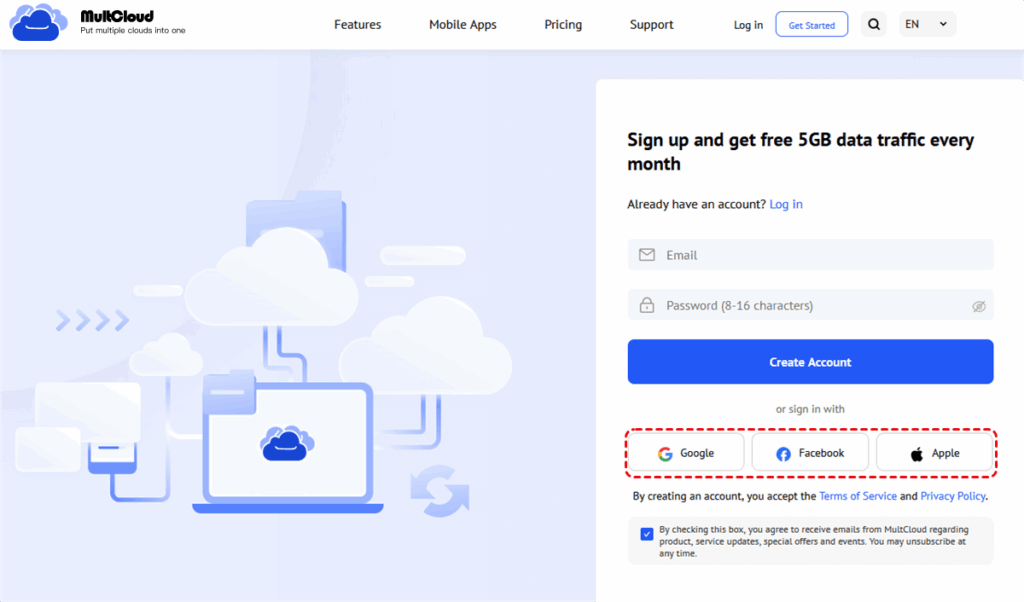
Step 1. Register a free MultCloud account and sign in.
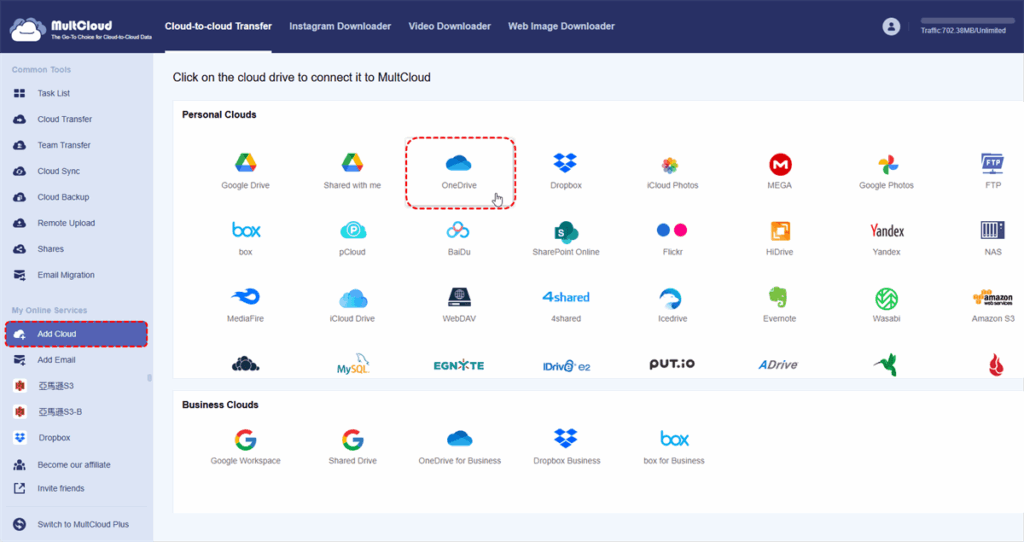
Step 2. Click “Add Clouds and Emails”, select the source and destination drive, and authorize MultCloud to access your cloud account.
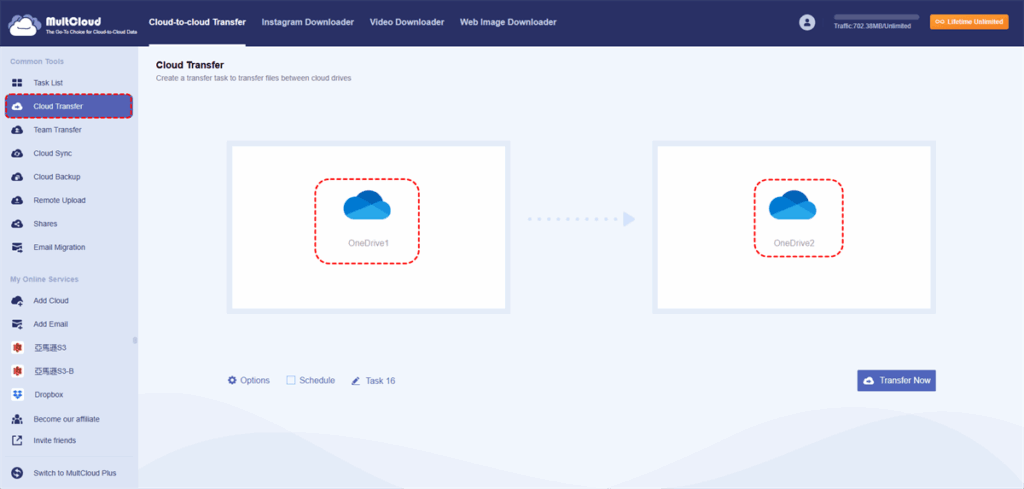
Step 3. Click on the left sidebar’s “Cloud Transfer”. Add your source drive by clicking “FROM” and destination drive by clicking “TO”. Then choose your source and target folders you want to use to achieve your migration goals.
Notes:
Advanced transfer parameters can also be changed by clicking the “Options” and “Schedule” buttons. In these panels, you can manage duplicate files, enable email notifications, set up file filtering rules or create automated recurring transfer plans to fit your needs.
4. Hit the “Transfer Now” button to begin the operation.
Final Thoughts
With MultCloud, you can transfer data directly between different cloud services, no local computer storage required. Aside from Cloud Transfer, MultCloud comes with extra practical features: Cloud Sync to automatically keep all your files consistent across various cloud drives, and Cloud Backup to create duplicate saves of your critical data. All these built-in tools streamline how you sort, secure and oversee files scattered across separate storage platforms.